
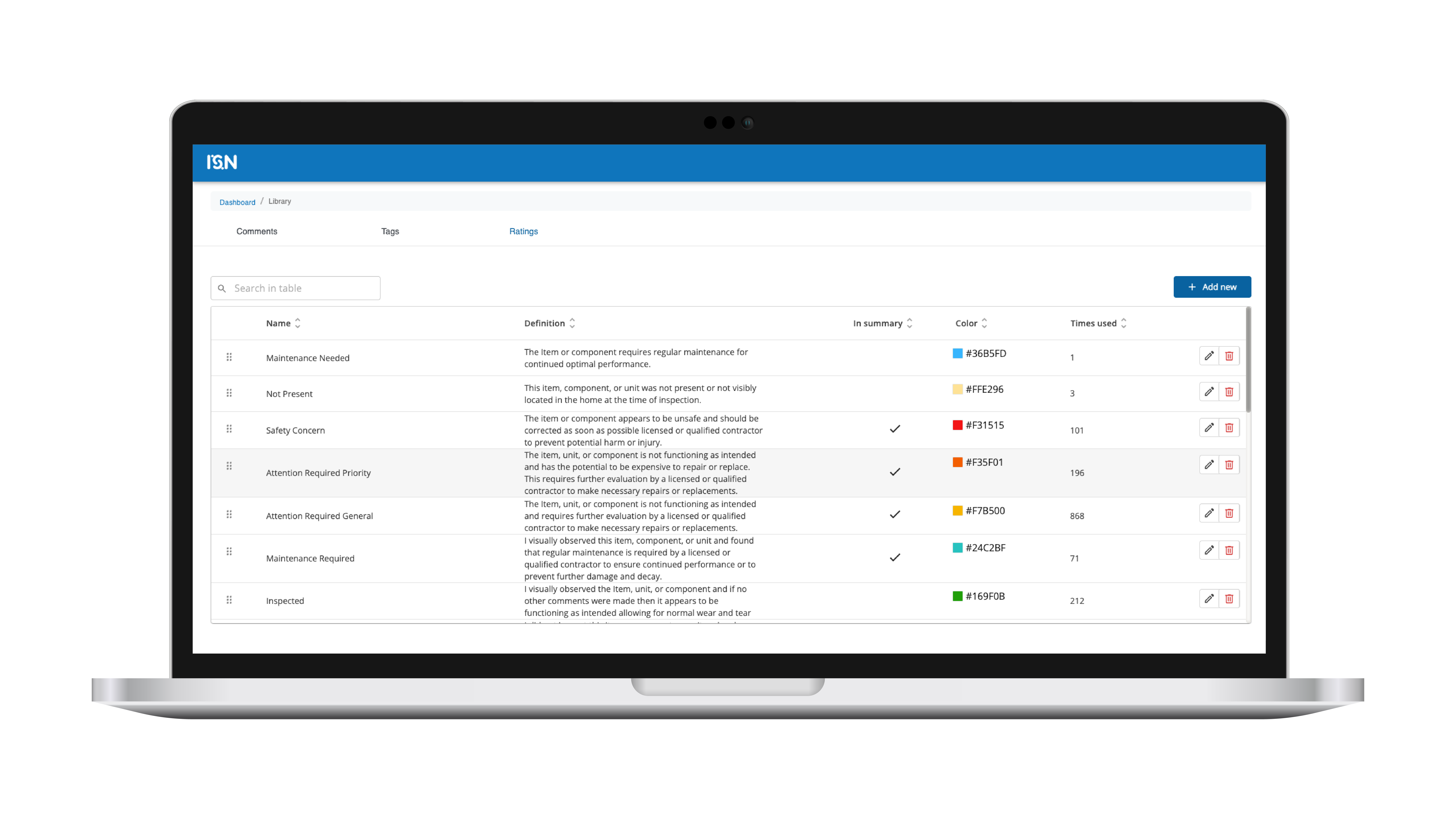
Home inspection software keeps moving forward, and ISN’s newest upgrade is built to make report writing smoother from the moment you start using it. Global Ratings is now live – giving your team one place to create, manage, and reuse standardized rating labels everywhere you write reports.
Instead of rebuilding rating systems in every template or retyping labels during report writing, ISN’s Global Ratings feature centralizes them. This keeps your terminology clean and ready to use. It’s simple, fast, and built for the way inspection teams work.
Why Global Ratings matter for inspectors
This feature is all about keeping your rating language uniform across your business, tightening workflows, and saving time. Plus, the benefits come directly from how the system handles rating labels behind the scenes.
- You set rating labels once and use them anywhere you write comments
- ISN automatically imports rating labels when you bring in comments from templates
- Ratings become available in the comment library, making comment creation faster and more predictable
- Multiple ratings can be applied to a finding, giving you the flexibility to add nuance
- Template doesn’t include a rating? No problem! Add it from the comment library, and it will be applied automatically
- Managing ratings is easy, with tools to create, edit, delete, search, and sort everything in one place
In short, we’re talking efficiency without extra steps, and consistency without extra effort.
How global ratings work inside ISN
Global ratings live inside the Comment ibrary under a dedicated ratings tab, where you can manage every reusable rating label your business relies on.

Step 1: Open the Template Editor
- Log in to the Web Report Writer
- From the dashboard, navigate to the Template Editor page
Step 2: Locate the Comment Library option
- In the Template Editor header, at the top-right corner, click on Comment Library
Step 3: Open the Comment Library
- The Global Comment Library will open, displaying all reusable comments, tags, and ratings available for your company
How to import ratings from templates
NOTE: At this time, global ratings are associated with the comment library. To import your ratings, you will also need to import your comments.
Step 1: Open the Comment Library
- From the Template Editor header, click on Comment Library
Step 2: Start import
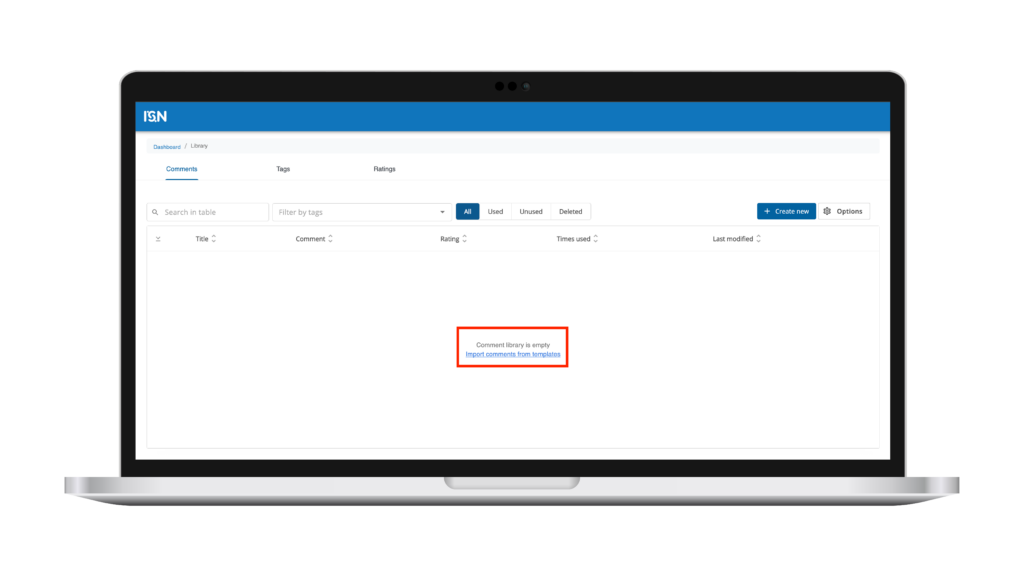
If the library is empty, click Import comments from templates in the center of the screen
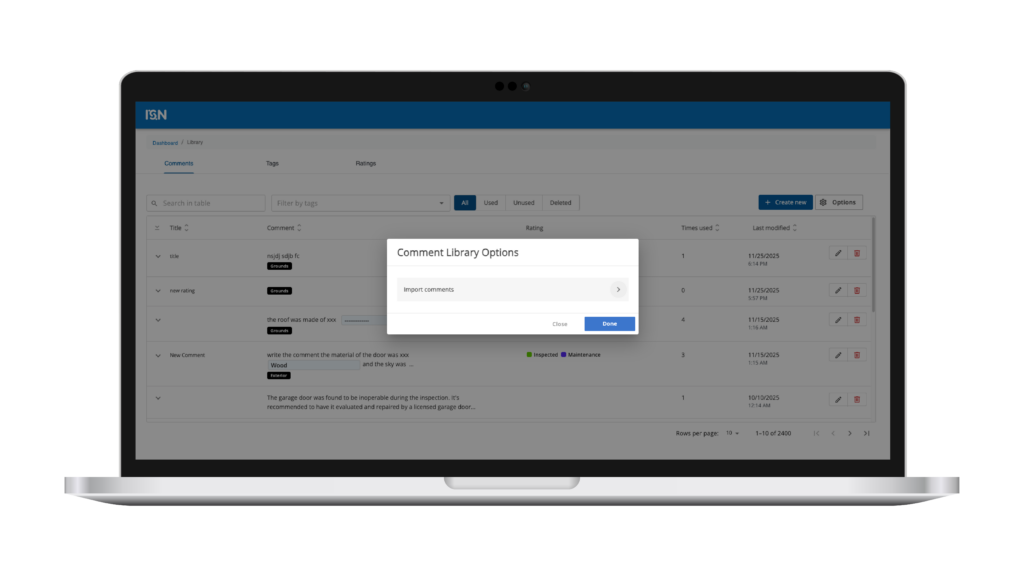
- If comments already exist, click Options in the top-right corner, then select Import comments from templates
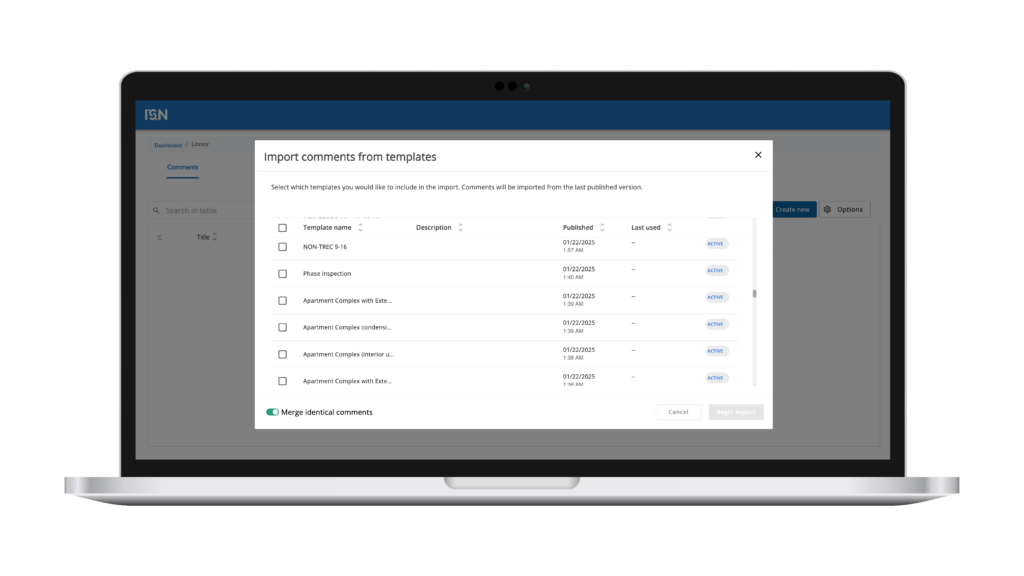
Step 3: Select templates
- In the modal that opens, chose one or more published templates from the list
Step 4: Merge identical comments (optional)
- Select the checkbox Merge identical comments to automatically merge comments with the same title and description across selected templates
Step 5: Import and monitor progress
- Click the Begin import button to begin
- A progress bar will display the status of the import
- Navigate to the Ratings tab and notice ratings are imported
How to access and manage ratings
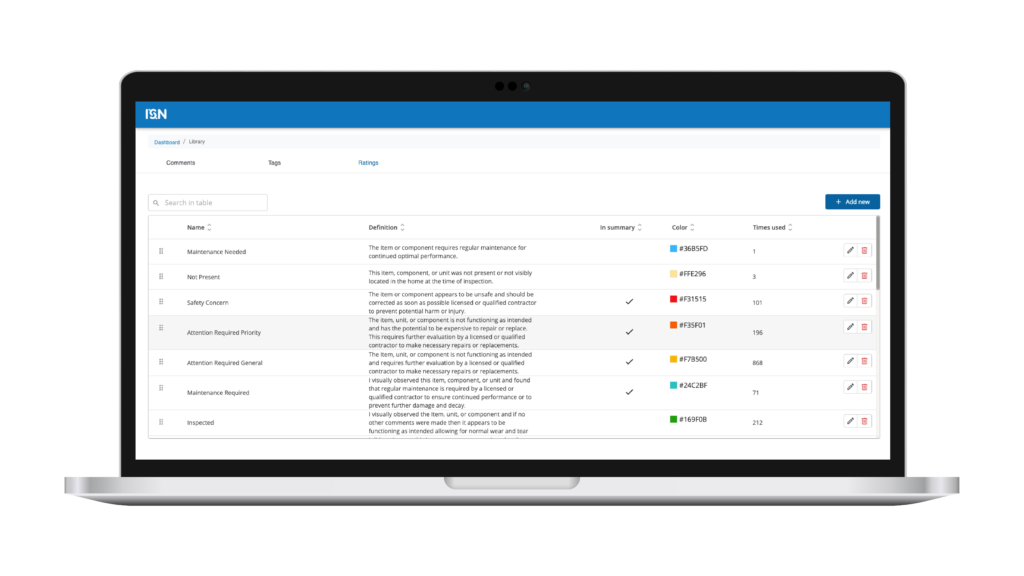
Step 1: Open the Ratings tab
- Navigate to Comment Library
- Select the Ratings tab form the top menu (Comments | Tags | Ratings)
Step 2: View the ratings table
- The Ratings table displays
- Name
- Definition
- Include in summary (yes/no)
- Color
- Time used
- Edit / delete actions
- You can use:
- Search bar → to quickly locate ratings
- Column sorting → to sort by name, color, usage count, etc.
How to create a new rating in the Comment Library
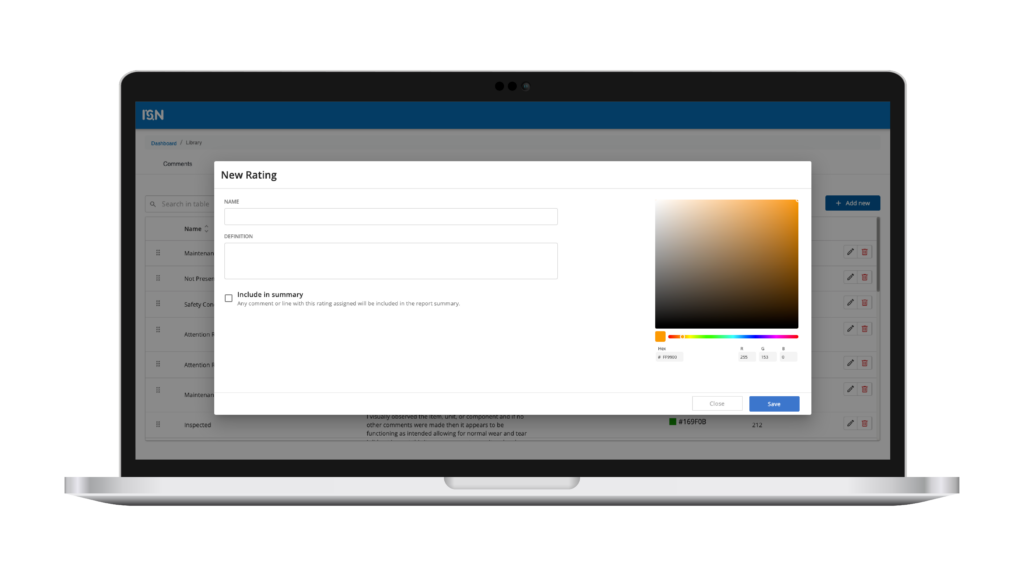
Step 1: Access the library
- Open the Comment Library from the Template Editor
Step 2: Navigate to ratings
- Select the Ratings tab from the top menu (Comments | Tags | Ratings)
· Step 3: Add a rating
- Click Add new rating
Step 4: Fill in details
- In the modal, enter the required fields for the rating
Step 5: Save the rating
- Click Save
- The rating will now appear in the global ratings list
How to edit or delete a rating
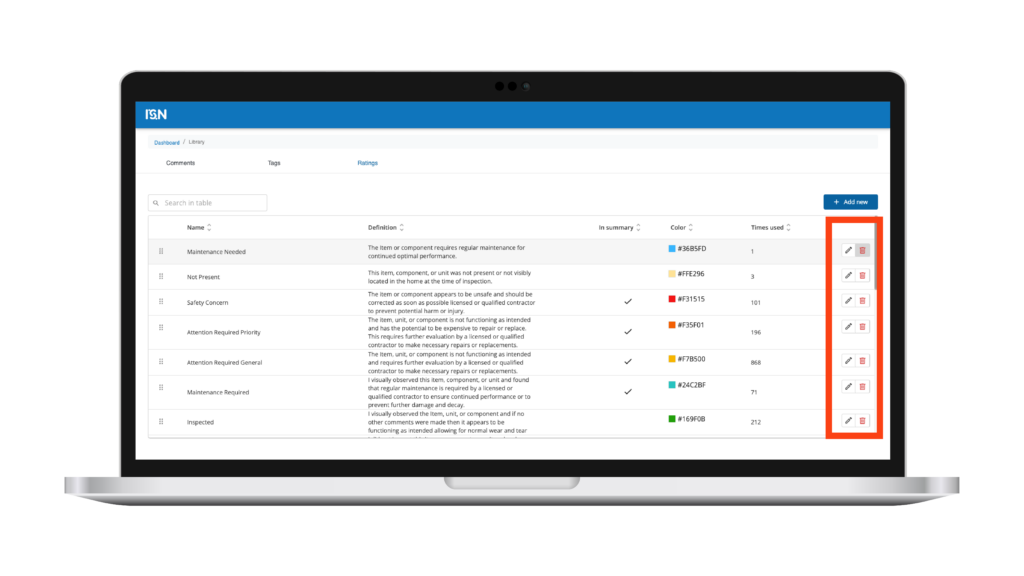
Step 1: Locate the rating
- Open the Ratings tab and browse or search for the rating
Step 2: Edit a rating
- Click the edit icon
- Update the name, definition, summary option, or color
- Click Save
Step 3: Delete a rating
- Click the trash icon
- Confirm deletion
- Deleted ratings will be removed from the ratings list but will remain in existing report
How ratings are used when creating comments
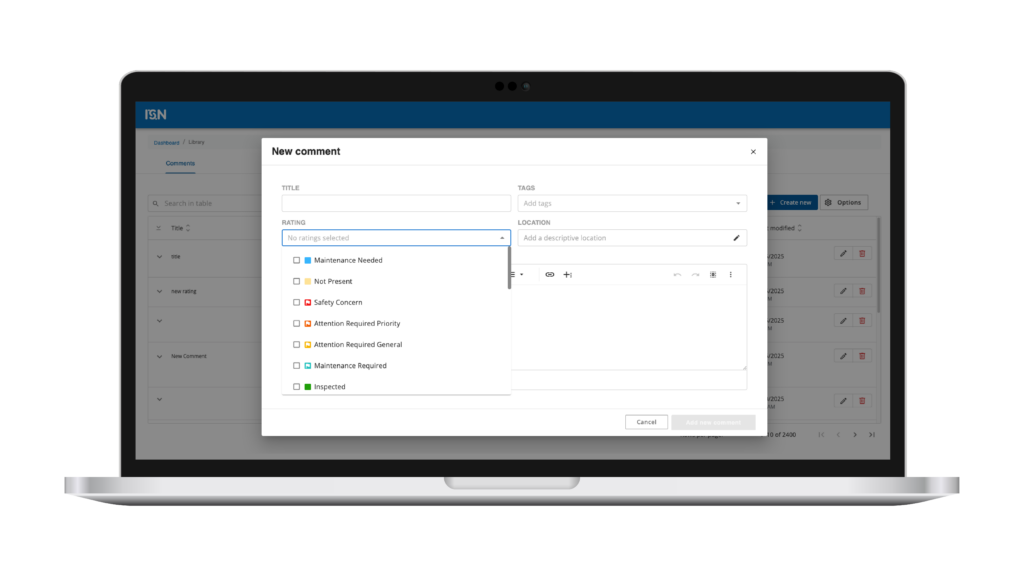
Step 1: Open Create new comment
- In the Comment Library, Template Editor, or Report Writer
- Click Add new comment
Step 2: Select ratings
- In the Rating dropdown, all available ratings from the Ratings tab appear
- Inspectors can select one or multiple ratings
- Each rating displays its defined color for quick identification
Step 3: Save the comment
- The selected ratings will be attached to the comment and appears wherever the comment is used
How ratings are handled in the Template Editor and Report Writer
Using comments from the Comment Library
- When inspectors insert a comment from the Comment Library into a template or report, all attached ratings are carried over automatically
If a rating does not exist in the template
- When using the comment in a template:
- The system automatically adds that rating to the ratings list in that specific template
- When using the comment in a template or report:
- The system automatically adds that rating to the report and is also displayed under Definitions
- This ensures consistent rating availability without manual setup
Editing ratings at template level
- Inspectors can still define or modify ratings within the template if needed
Your home inspection software just got a serious upgrade
Global ratings is part of ISN’s ongoing rollout of time-saving tools that help inspectors write reports faster, stay organized, and simplify everyday processes.
Sign up for your free ISN trial and see how much smoother report writing becomes when your rating terms stay organized and ready to use everywhere you work.